Gcode Preview: See What the Printer Will Do Before It Does It
LayerWalker is a participant in the Amazon Services LLC Associates Program. We may earn a commission when you buy through links on our site, at no extra cost to you.
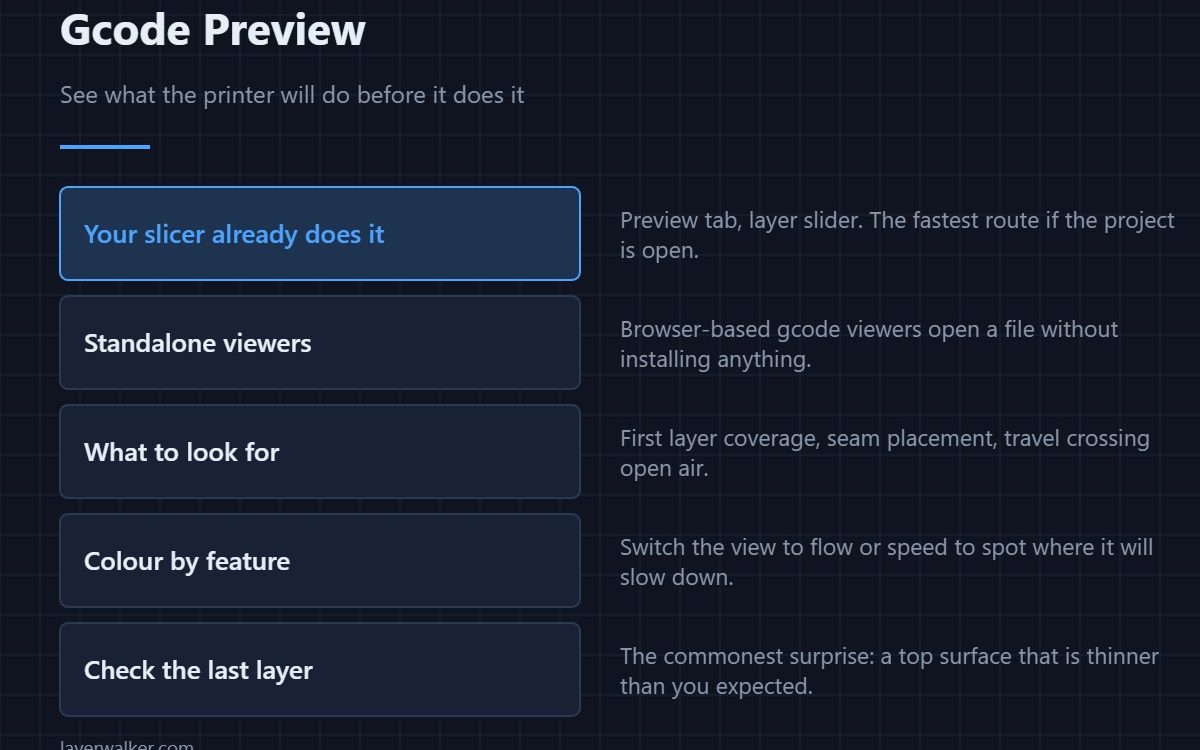
A gcode preview renders the toolpath layer by layer so you can see exactly what the printer will do. Your slicer already has one in its Preview tab; for a file someone sent you, a browser-based gcode viewer opens it without installing anything. Check the first layer, the seam position, and whether travel moves cross open air. It shows geometry, not settings, so it cannot catch a wrong temperature.
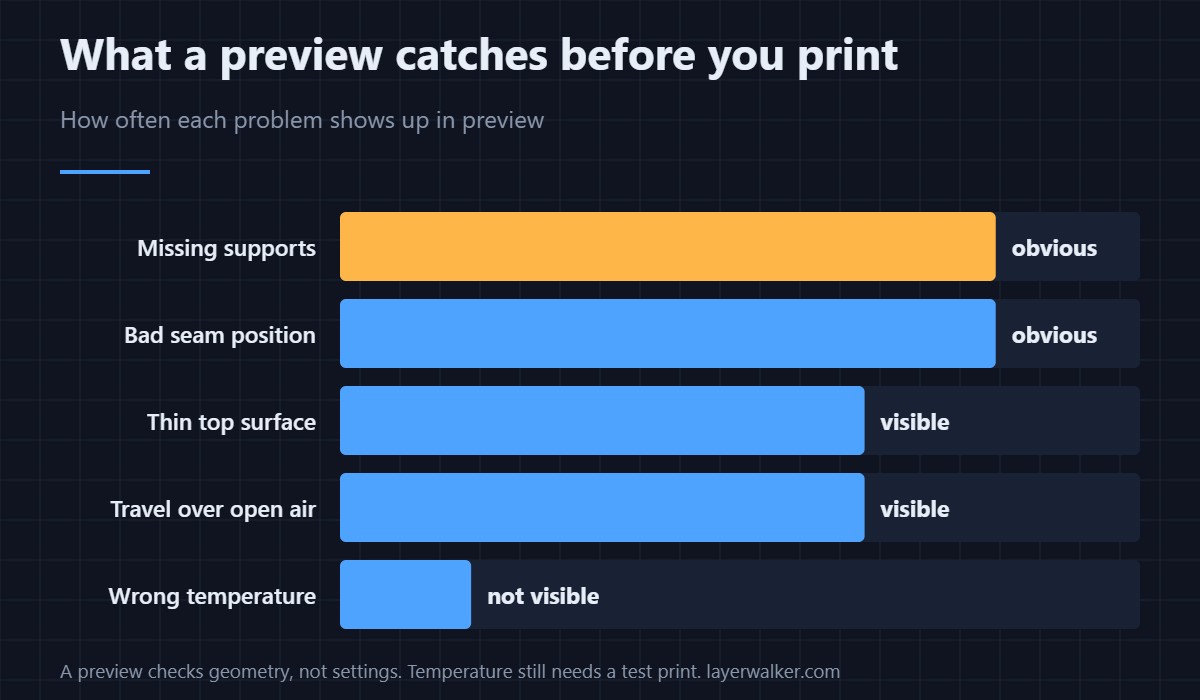
Most wasted prints were visible in the preview and nobody looked. Thirty seconds with the layer slider catches missing supports, a seam running up a visible face, and a top surface thinner than you intended.
Where to buy


In your slicer
Every slicer has a Preview tab with a vertical layer slider and a horizontal move slider. Two things make it far more useful: colour the view by feature type to see walls against infill against supports, and colour by speed to see where the printer will slow down. Both are a dropdown away in OrcaSlicer, PrusaSlicer and Cura alike.
Opening a file without a slicer
If someone sends you a finished .gcode file, browser-based viewers render it without any install and without uploading it anywhere in most cases. That is the quick route when you want to check a downloaded file before committing four hours of printing to it.
What to actually look at
- First layer. Does it cover the area you expect, with a brim if the part needs one? Most adhesion failures start here — see first layer problems.
- Seam position. Is the Z-seam on a corner or wandering across a curved face? Fix it in seam settings rather than sanding afterwards.
- Supports. Scrub to the overhangs and confirm something is holding them up.
- Top layers. Jump to near the top and check the solid surface is as thick as you asked for.
- Travel moves. Long travels over open air are where stringing comes from — see stringing and oozing.
What a preview cannot tell you
Temperature, flow rate, retraction distance and bed adhesion are all invisible in a preview because they are numbers in the file rather than shapes. A preview confirms the geometry is what you intended; a test print confirms the settings are. The two are different checks and you need both — the tools for the second are in the slicer comparison.
Gcode Preview FAQ
Can I preview gcode without installing a slicer?
Yes. Browser-based gcode viewers render a file directly, which is useful for checking something you downloaded before printing it.
Why does my preview look different from the finished print?
Because the preview shows the intended path, not the result. Differences come from temperature, flow, adhesion or mechanical issues — none of which appear in the toolpath.
What is the most useful preview view?
Colour by feature type for checking structure, and colour by speed for spotting where the printer will crawl. Switching between the two takes seconds.
Can I edit gcode in a preview?
Viewers are read-only. To change something, adjust the setting in the slicer and re-slice — hand-editing G-code is rarely worth it outside of custom start and end scripts.

LayerWalker
Print defect diagnosis, calibration procedures and parts that actually fit. Corrections welcome through the contact page.