HMS 0300-0300-0002-0002: hotend cooling fan running slowly
LayerWalker is a participant in the Amazon Services LLC Associates Program. We may earn a commission when you buy through links on our site, at no extra cost to you.
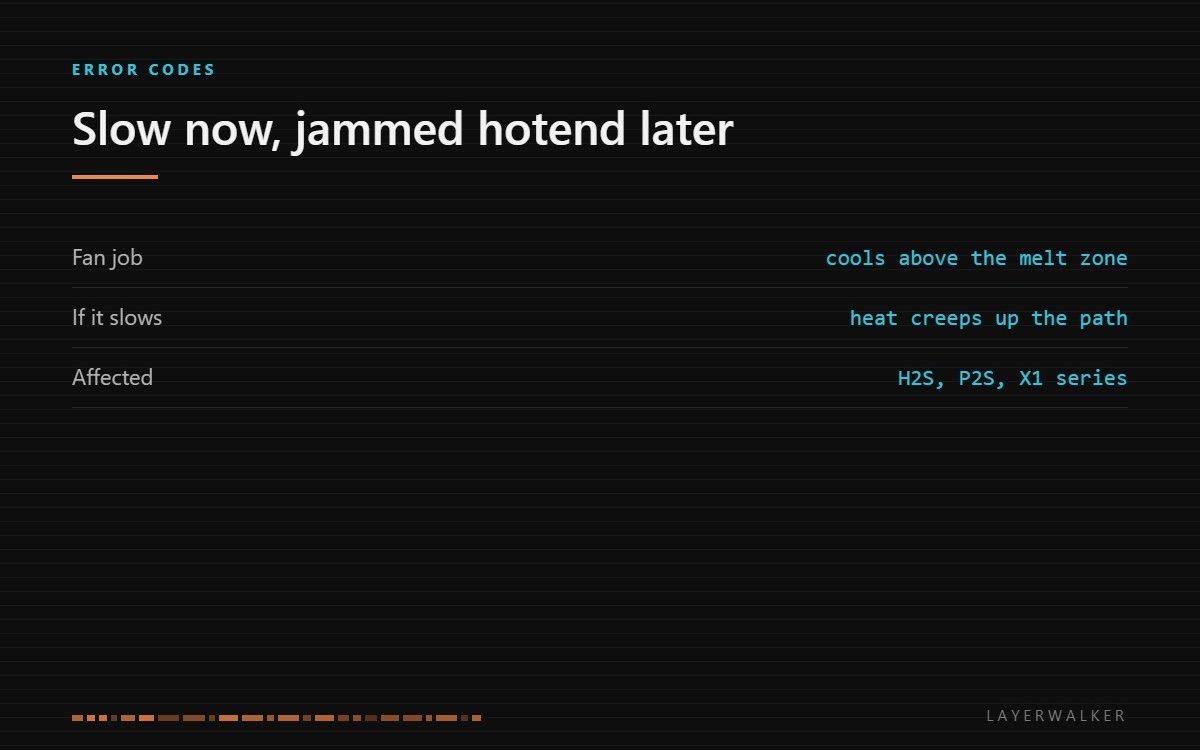
The heatsink fan is turning but below the speed the firmware expects. This is a warning ahead of a jam, not a jam yet. Clear the blades first: debris is the cause far more often than a failed bearing.
Affected machines: H2S, P2S, X1 series. This is the same fan as the stopped-fan code, caught earlier. The machine measures fan speed and complains when it drifts below target, which gives you a window to fix it before the hotend jams.
Where to buy


Slow is a warning, stopped is a failure
The heatsink fan holds the upper part of the filament path below the temperature at which plastic softens. When it slows, heat creeps up from the heater block, the filament goes soft too early, and it swells against the walls of the path. The result is a jam that feels like a clog but is caused by cooling rather than by the nozzle.
Catching it at the slow stage is the cheap outcome. Catching it after the jam means clearing a softened plug out of the heatbreak as well.
Code appears during or shortly after heat-up; printing may continue but extrusion becomes inconsistent
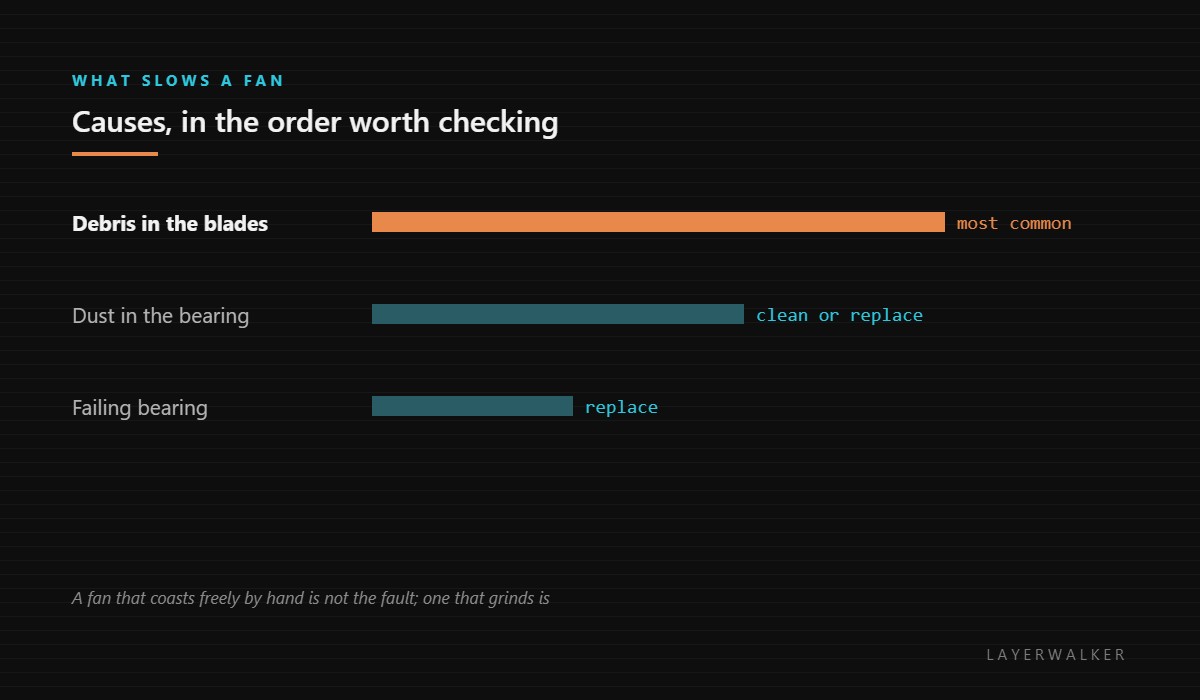
Debris in the blades, dust in the bearing, or a bearing starting to fail
- Power off at the wall and let the hotend cool completely.
- Look directly at the small fan on the side of the toolhead and remove any filament strand, zip tie or wire that has drifted into the blades.
- Brush dust out of the heatsink fins behind the fan, because a blocked heatsink raises the load on the fan.
- Spin the fan by hand. A healthy fan coasts freely; one that grinds or stops dead has a failed bearing and needs replacing.
- Reseat the fan connector, then run a warm-up and confirm the fan reaches speed before reassembling the shroud.
If the fan passes the hand test and the code still appears, the fault is in the speed signal rather than the fan: check the connector and the loom where it flexes before ordering a part.
Our page on 3D printer cooling fans explains the difference between the two fans on the toolhead, which matters because ordering the wrong one is the most common mistake here. If the hotend has already jammed, clearing a clogged nozzle covers that step, and the troubleshooting index covers the wider family.
HMS 0300-0300-0002-0002 FAQ
Can I keep printing with this code?
Briefly, but the jam is coming. Fix it before a long print.
Is this the fan that blows on the print?
No. That is the part cooling fan and it has its own code.
Does cleaning really fix it?
Most of the time, yes. Debris and dust account for the majority.
What if the fan spins freely but the code stays?
Then suspect the connector or the speed signal, not the fan.

LayerWalker
Print defect diagnosis, calibration procedures and parts that actually fit. Corrections welcome through the contact page.